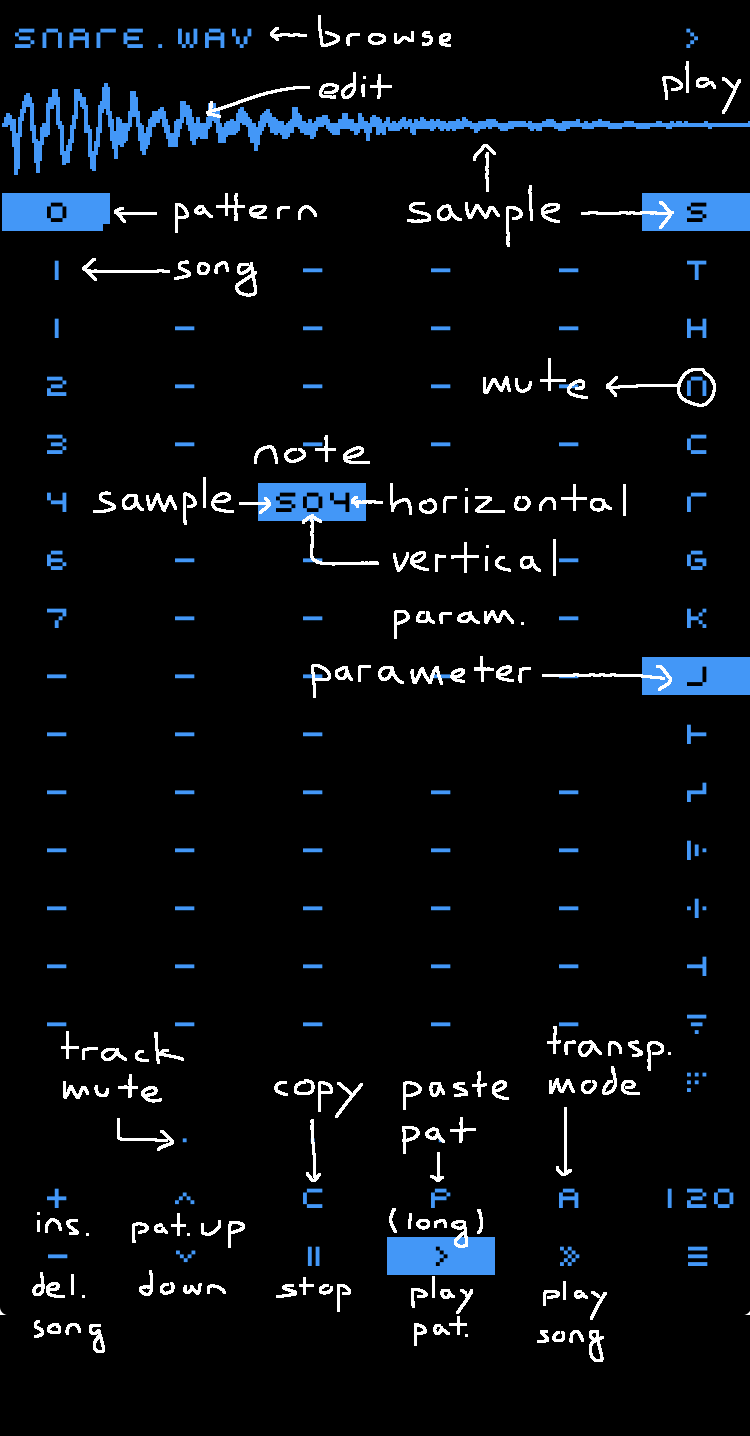
- tap on void: place note with current sample
- tap on note briefly: delete
- tap + hold/swipe on note: edit note
- tap + hold/swipe on void: transpose
the current sample can be selected in the upper right column.
select a parameter in the lower right column to edit various aspects of the notes.
note editing is two-dimensional, each parameter has a vertical and a horizontal aspect.
delete = copy note (
tap & hold / swipe on an empty location in the sequencer selects all notes of the track or, when
muted notes are not affected, sample mute (swipe left on sample selection) and track mute (tap on dot below track) may be used to transpose only the remaining notes.
| vertical | horizotal | |
| | |
|
| semitone | octave | |
| pitch envelope | length | |
| pitch LFO | frequency | |
| envelope | shape: AD, gate, D | |
| volume | panning | |
| offset | loop length | |
| filter | high/low pass | |
| meta | delay |
the sample offset parameter (
the pitch LFO is reset at note start for frequencies up to 5. with higher values (=slower LFO), the LFO is freerunning.
when the (vertical) amount is 0, the frequency controls the tempo of the pitch slide between overlapping notes.
tap repeatedly on a parameter icon to randomise notes with the current sample or all (when
only the vertical parameter is randomised.
there are 8 sample slots in the upper right column, showing the initals of the samples contained.
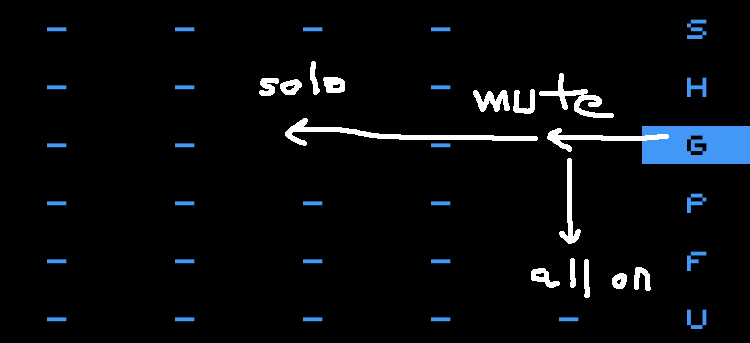
tap + swipe left: mute/unmute (
tap + swipe far left: solo
tap + swipe left and down: all on
tap on wave form: edit current sample
tap on sample name: open sample browser
loads a new sample to the current sample slot.
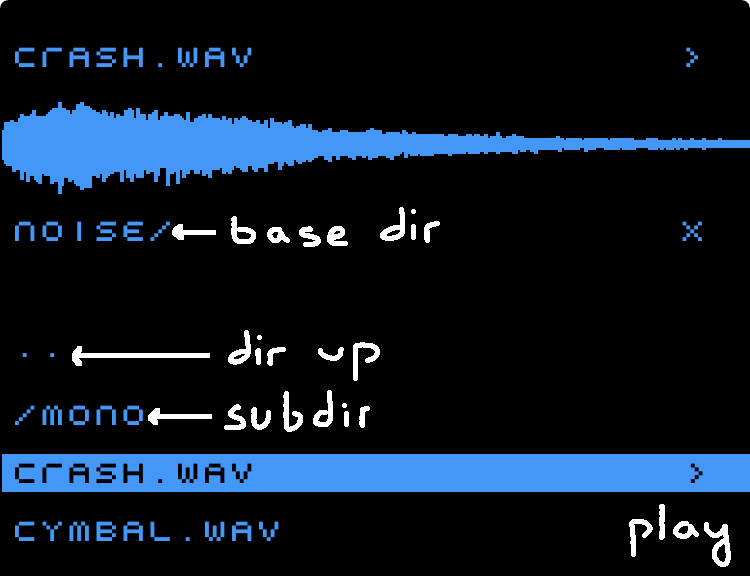
default base directory is "samples" in the "naive" app folder.
it can be changed to other folders on the device as well as other locations in the file system, for example iCloud.
when the samples list fits on the screen, swiping selects / plays the samples. when the list is longer, swiping scrolls through the list.
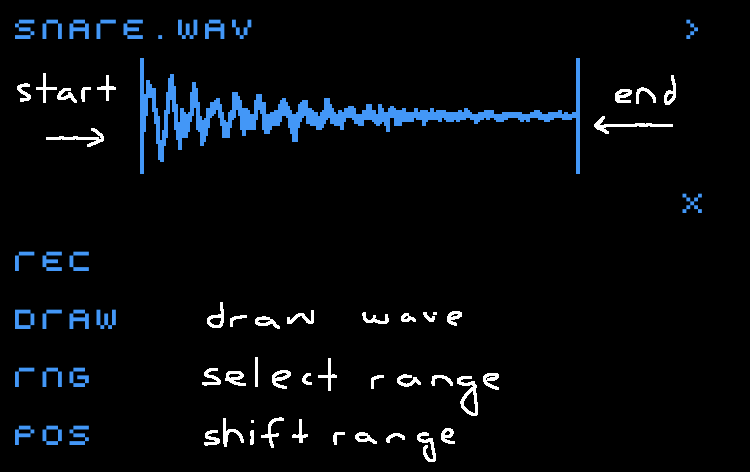
there are 3 modes of sample editing:
draw the raw wave form. works best on short, looped samples. to draw up to the edges, it is recommended to set a range first that leaves some room on the sides.
swipe from edges to center to set start and end of the selection.
swipe horizontally to shift the selection while length is preserved. on looped samples and with a very short range, live granular effects can be achieved.
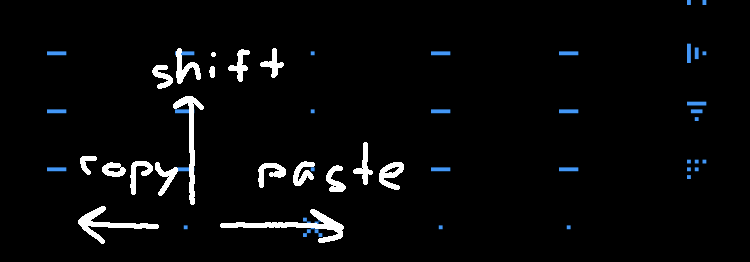
- tap on dot below track: mute / unmute (
- swipe left: copy track (
- right: paste track(
- up/down: shift track
(paste requires 2 sec press to avoid accidental overwriting)

fast duplicate
instead of copying the current pattern, adding a new song step, increasing the pattern no. by one and pasting the pattern, you can simply swipe right on
while song length is less than 17, swiping through the pattern list allows extremely fast pattern switching for live performance. with more than 16 steps, swiping scrolls the song and steps can only be seleced by tapping.
there are 16 patterns and 256 song steps.
track / sample mute is per song-step, e.g. switching tracks on and off does not require separate patterns.
when song play is tapped twice (
the entire song is exported as .wav file to "export" in "samples" in the "naive" app folder. when using the export function to create new samples (re-sampling), it is recommended to keep the song length at a minimum to avoid unnecessarily large files.